AI
AI in Tines Stories is available for all tenants, and can be configured by a tenant owner.
Learn more about AI in Tines.↗
Enable AI features
Control whether or not AI features are enabled across the whole tenant. These can be turned on via the AI settings in the settings center. By default, AI is turned on for newly created tenants.
For more granular control, expand Advanced options to enable or disable individual AI features. You can also choose whether newly released AI features are enabled by default.
AI providers
By default, AI features are powered by Anthropic's Claude, hosted securely through AWS Bedrock.
It is possible to bring your own AI provider to power all of our AI features. The following AI providers are configurable with the following customizations:
AI providers, observability tools, or custom proxies which are schema compatible with the following providers can also be configured as well. This includes but is not limited to:
OpenAI / Anthropic behind a proxy or service
Credentials and formulas in provider configuration
When configuring an OpenAI or Anthropic compatible AI provider, you can use credentials and formulas in the API key and header fields instead of pasting raw secrets.
To use credentials, associate the provider with a team. Once associated, any credential owned by that team is available to reference in the provider configuration. The provider itself remains available for use tenant-wide.
Multiple AI provider support
You can enable multiple AI providers within a single tenant.
Once enabled, Tines lets you choose models from any of your active providers when configuring:
AI Agent actions on the storyboard
The tenant's default smart and fast models in AI settings
The selected model for a Workbench conversation
This gives you the flexibility to mix and match providers and models while keeping control over exactly which models are exposed in your tenant.
Note: Tines AI features require at least one active AI provider. If a provider is being used as the default smart or fast model, it must remain enabled until you switch those defaults to another provider's models.
Team scoping
AI providers can be scoped to specific teams, giving tenant owners more granular control over who can access each provider and its models. This is useful for:
Managing costs: limit expensive models to teams that need them.
Enforcing compliance : restrict providers based on data handling requirements.
Staged rollouts: introduce new models to specific teams before enabling them tenant-wide.
The team that owns each provider's credential always has access. By default, all other teams also have access unless the provider is explicitly scoped. For AI Agent actions, access is based on the action's team. Workbench access is based on the user, not the selected preset's team, so users can access providers available through any team they belong to. Tenant owners can access all enabled providers in Workbench.
Schema compatibility
When using a custom AI provider that's not listed above, the provider must be schema compatible with the OpenAI API. Set the API type option (under the provider’s extra options) to match your endpoint. The endpoint must support streaming and tool use.
Additionally, if the provider supports the models list endpoint↗, Tines is able to auto discover models. If not, you can still add custom models manually from the models tab.
AI models
When configuring OpenAI compatible APIs, it is possible to select which models are usable within Tines. Once configured, the fast model will power features such as automatic transform. The smart model will be used to power Workbench and other similar features.
When a feature does not have a model selected directly, Tines uses the default smart or fast model. A model selected in Workbench or on an AI Agent action overrides these defaults.
The smart model is used by default for:
Workbench responses, including Workbench for Storyboard, Workbench for Cases, and App building
AI Agent actions in chat mode or task mode with agentic capabilities, such as tools, code analysis, web search, or skills
AI formula generation
Automatic mode
The fast model is used by default for:
Task-mode AI Agent actions without agentic capabilities
Lightweight Workbench tasks, including prompt suggestions and conversation titles
AI-assisted action and story names, story descriptions, change request descriptions, and App names
All custom models enabled on an AI provider are also accessible on the AI action.
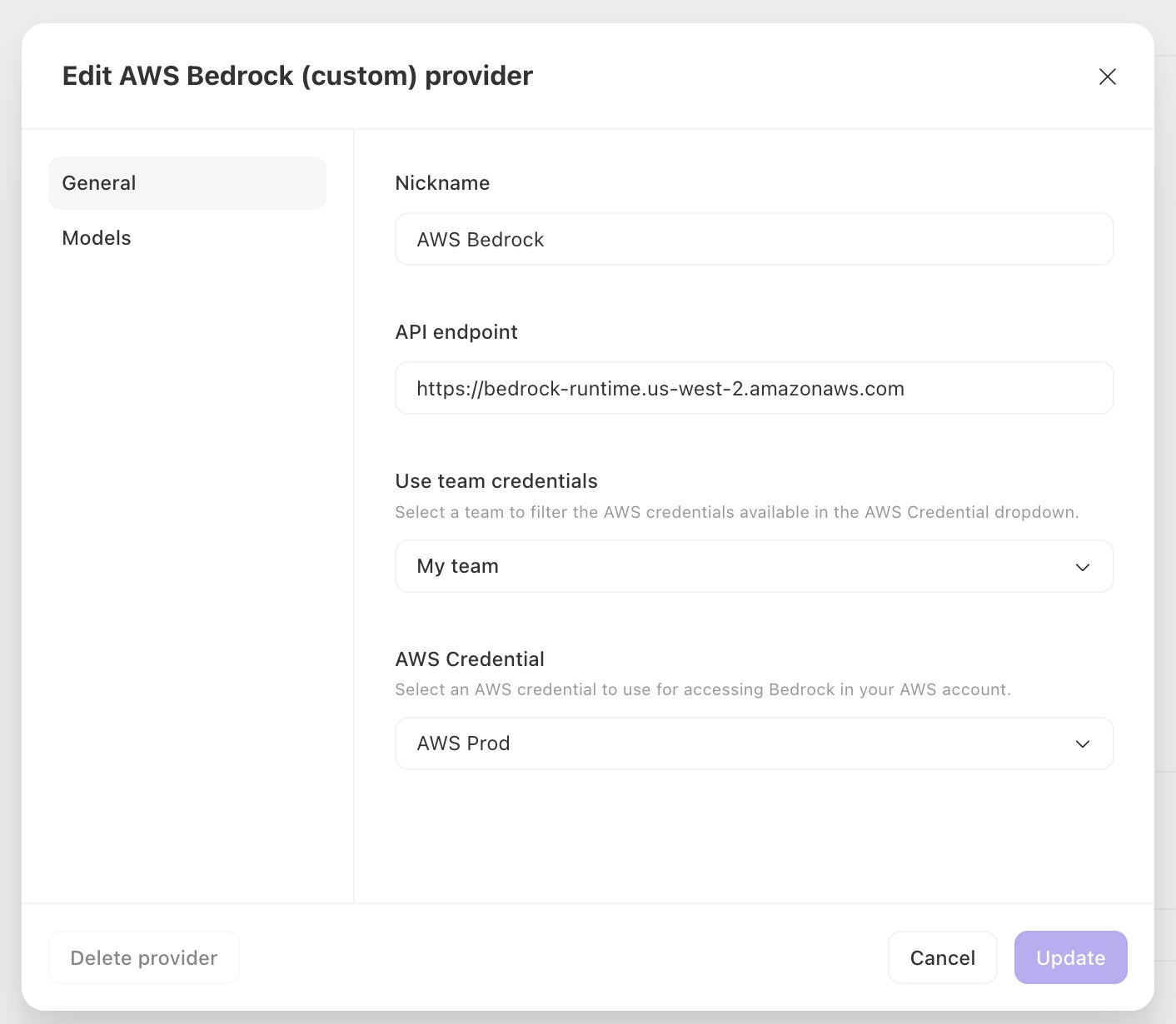
Custom AWS Bedrock support for cloud
With custom AWS Bedrock support for cloud, you can choose any models that are enabled in your AWS region and permitted by your Bedrock account.
We recommend enabling the latest Anthropic Claude models for best performance and capabilities.
Model IDs can be obtained from the AWS Bedrock documentation↗.
Credentials for AWS Bedrock
To securely invoke AWS Bedrock APIs, Tines supports AWS authentication by connecting a credential to the provider or through assumed roles for the instance (self-hosted only).
Required IAM permissions
To use Bedrock within Tines, the IAM role must include the following permissions:
{
  "Version": "2012-10-17",
  "Statement": [
    {
      "Sid": "BedrockModelAccessPermissions",
      "Effect": "Allow",
      "Action": [
        "bedrock:InvokeModel*",
        "bedrock:GetInferenceProfile",
        "bedrock:ListInferenceProfiles",
        "bedrock:ListFoundationModels"
      ],
      "Resource": "*"
    }
  ]
}
AWS Bedrock endpoints
When configuring your connection to AWS Bedrock, you’ll need to specify the correct Amazon Bedrock runtime API endpoint for your AWS region.
It will look something like: bedrock-runtime.<region>.amazonaws.com
View the list of region-specific Bedrock runtime endpoints.↗
Azure OpenAI
When deploying OpenAI models through the Azure AI Foundry↗, additional configuration is required to enable use of those models in Tines. Each model is deployed to a unique URL and must be manually added to the model list.
You will also need set the API Type in Extra Options to Azure
OpenAI models on Amazon Bedrock Mantle
Amazon Bedrock Mantle↗ serves OpenAI models over an OpenAI-compatible API. Configure them as a custom OpenAI provider with these settings:
API endpoint:
https://bedrock-mantle.<region>.api.aws/openai/v1API type: OpenAI Responses (under the provider's Extra options)
Model ID: added manually from the models tab, for example
openai.gpt-5.6-luna
Custom certificate authorities
When creating a custom AI provider, you can select the custom certificate authority to use for the connection. This can be helpful when connecting to your own private AI service.
Tunnel
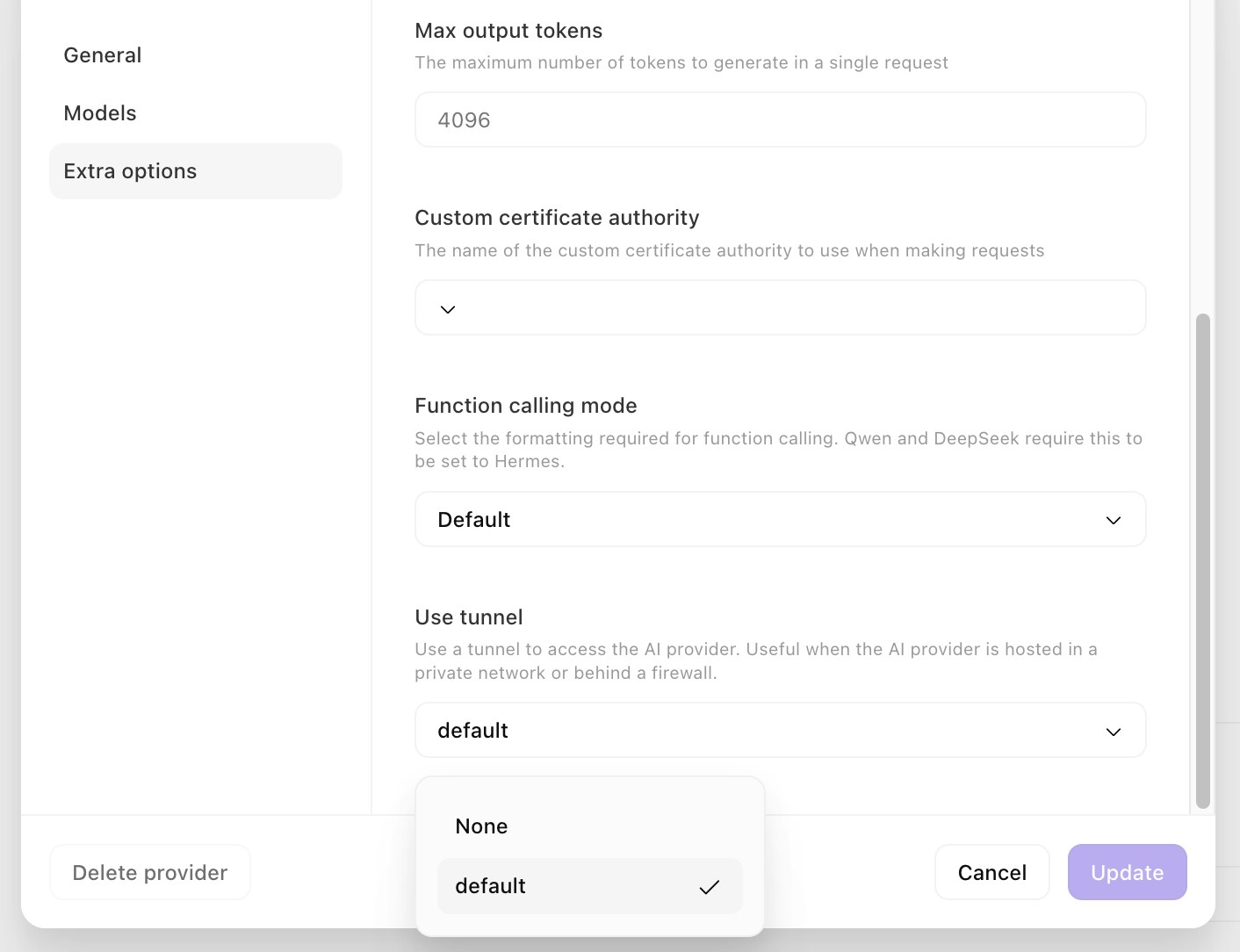
You can also configure a custom AI provider to connect via a Tines Tunnel. This can be configured under Extra options when configuring your provider. Connecting via a Tunnel allows your cloud tenant to securely access AI services running in your internal networks. Only Tunnels which are accessible by all teams can be used.
For more information visit the Tunnel docs here.
AI credit management
You can top up your AI credit balance from the Billing screen in Settings - you can learn more about that here↗. If you need to increase your monthly AI credits, contact your Tines account team.
Team allocations for AI actions & Workbench
In the AI settings screen you can open AI credit allocations & limits to allocate your AI credits↗ to runtime AI usage (AI action runs and Workbench conversations) in your teams. Allocating credits to a team reserves those credits for use within the team, reducing the amount that can be spend in teams without allocations. Tenant owners will receive email notifications when a team is nearing its allocated amount.
Note:
Workbench conversations without a preset use the tenant's unallocated credits as these conversations are team agnostic.
Workbench conversations using a preset will use the credits allocated to the team associated with that preset.
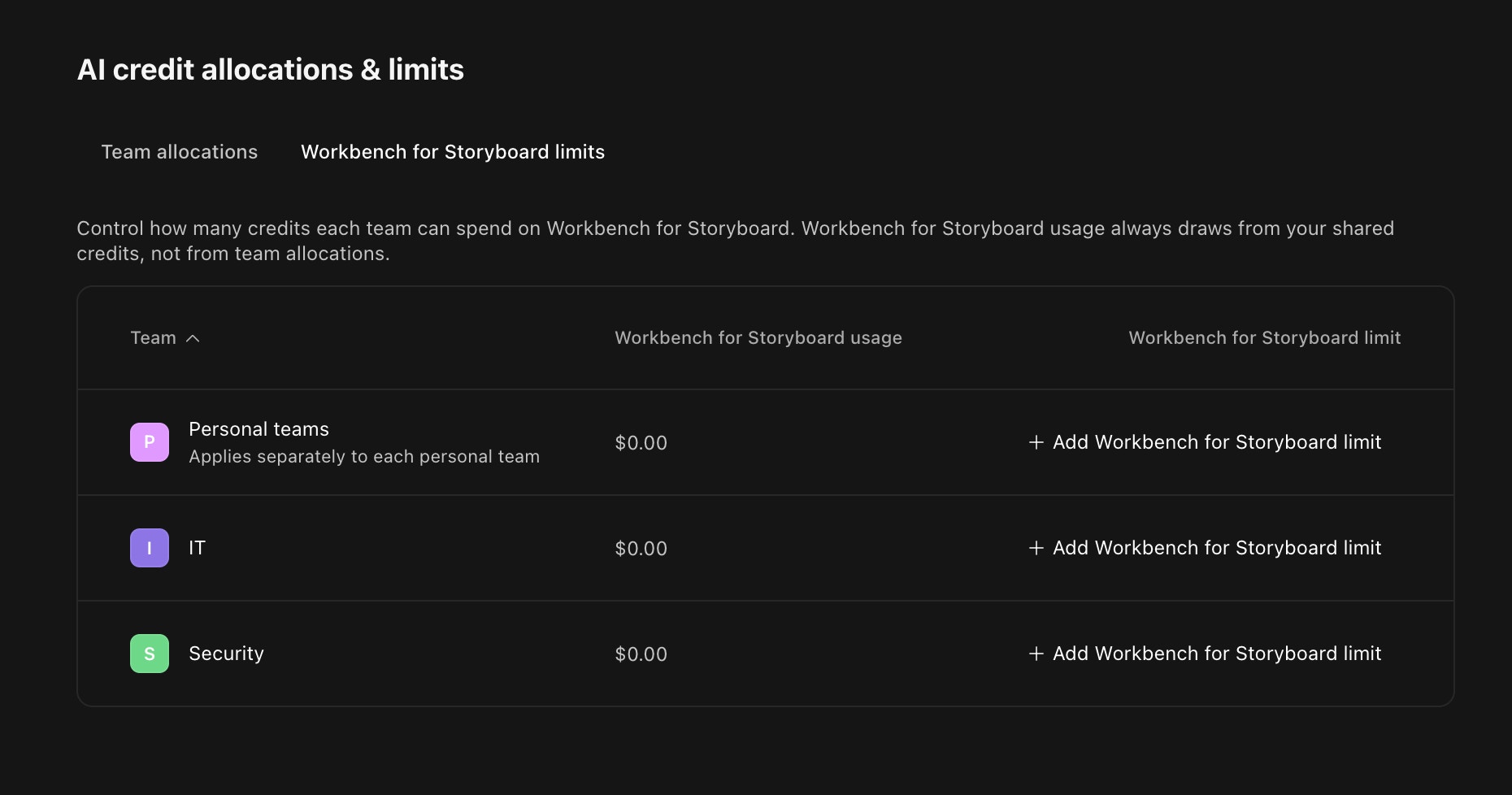
Team spending limits for Workbench for Storyboard
Workbench for Storyboard usage always comes from unallocated credits—this ensures that usage does not consume credits allocated for runtime AI usage in your teams.
Under Workbench for Storyboard limits you can set spending limits for your teams, and a single spending limit which will be applied to each personal team.
Prompt caching
Tines automatically handles prompt caching when using Tines AI, OpenAI, Anthropic, or custom AWS Bedrock providers. Prompt caching reduces costs and latency by reusing previously processed prompt content. You can learn more about prompt caching here↗.
Prompt caching is ephemeral - cached content automatically expires within minutes and is not stored persistently. Caching does not affect data residency and does not change the security or compliance posture of your AI provider.
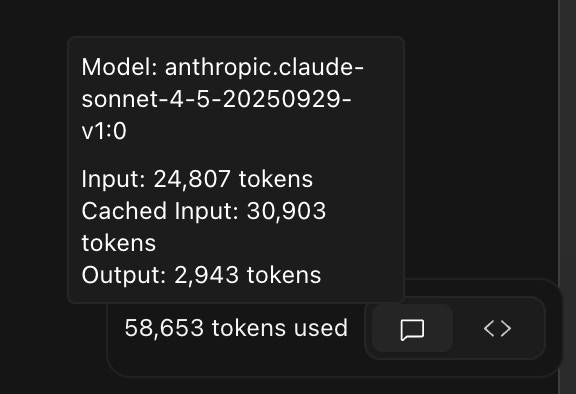
Prompt caching controls the amount of tokens that fall under Cached input. These tokens are processed faster and for a lower price.