Overview
Stories consist of actions, and events are created as a result of actions running. The chain of actions and events set off by a run is called a story run. Story runs can consist of unlimited amounts of actions and are recorded with a unique GUID (globally unique identifier) for each chain of events that occurs. The unique identifier of the story run can be obtained from the META formula key, or the STORY_RUN_GUID function. Note: In the case of Send to Story, obtaining the story run guid using the STORY_RUN_GUID function will yield the calling story's story run guid in both the calling story AND the sub-story, so if you need the sub-story's story run guid, use the META formula key (i.e., META.story_run.id).
When reviewing events from a story, the story runs view can be utilized to present a clear picture of events as they took place during an execution route.
Storyboard view
Select "Show this run's events only" from the kebab menu within any event in the event viewer to filter the storyboard to that event's story run. This makes it easier to visually trace or debug a particular run through a busy or complicated story.
Select "Show this event's path only" from the kebab menu within any event to filter the storyboard to that event's path through the story run. This is a more granular companion to "Show this run's events only" and is particularly useful with an Event Transform action in Explode mode, where a single event can fan out into many events, each taking its own path. The filtered view won't always be a single linear path; if the event encounters branching logic or further Explode actions along its route, those will also be included.
Story run view
The story run view can be accessed by selecting "Story runs" located within the kebab menu at the top right of your storyboard.
Event routes
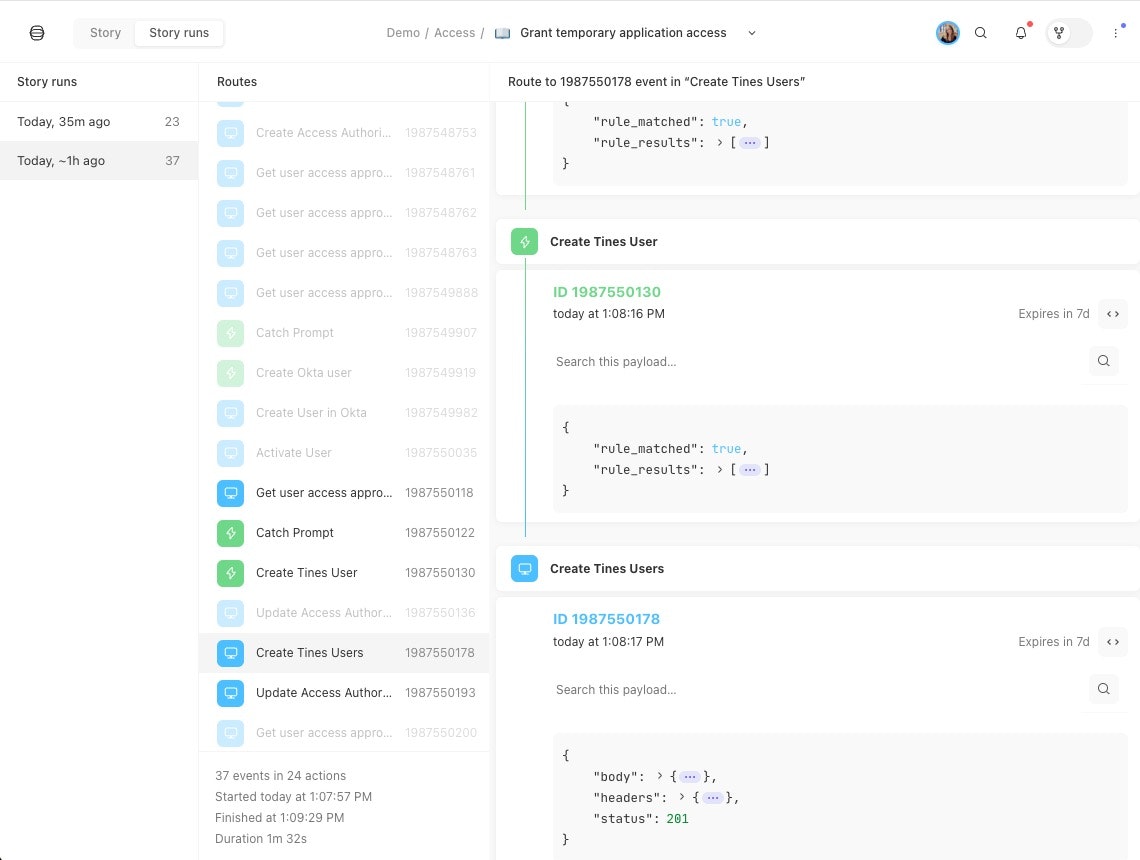
Within the story runs tab, there is a story runs panel and a routes panel. The story runs panel groups the latest set of actions and their corresponding events together by story run. Each run is listed in order by most recent runtime along with the number of actions in that story run.
Clicking on an individual story run in the story runs panel will display all actions that took place during that story run. These actions will appear in the routes panel. At the bottom of the routes panel, the following story run metrics are reported:
The number of events that took place across the number of actions in the story run
Story run start time
Story run finish time
Story run duration
Clicking on an action within the routes panel will display the corresponding event in the panel to the right along with all preceding and/or succeeding events. This provides a single view of the details of all events in a route. The arrow beside Routes also links out to the filtered storyboard view of the story run (i.e. the storyboard with "Show this run's events only" applied).
Events can take multiple routes during a single story run, usually as a result of "exploding" an array or branching to multiple actions in a story. When an individual action is selected in the routes pane, the actions that were part of that particular route will remain highlighted, making it easier to understand which actions took place to arrive at a particular event.
Note: You can also visualize this easily on the storyboard by using "Show this event's path only."
View and edit actions from story runs
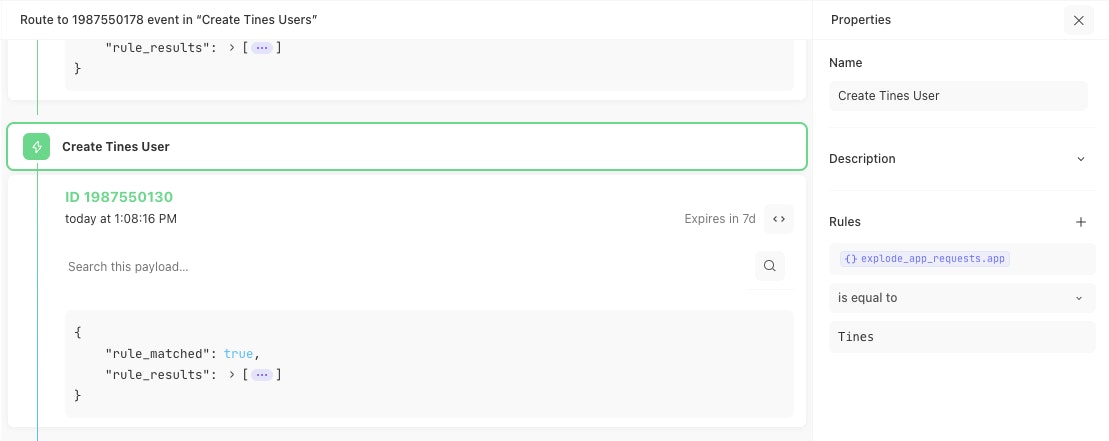
Clicking on the action title of any of the events seen in the primary event viewer will populate the selected action's editor panel. This panel allows for viewing and configuring actions in real time. This is helpful when editing action configurations while referencing a wide range of event data from previous story runs.
View story runs from the event panel
Within the events viewer, you can select the kebab menu and click "Open story run" to open an event in the context of its story run. This allows you to more easily understand what happened before or after an event occurred.
Looking for Saved story runs, find them here.