Connecting Tines to 3B
Connecting to 3B
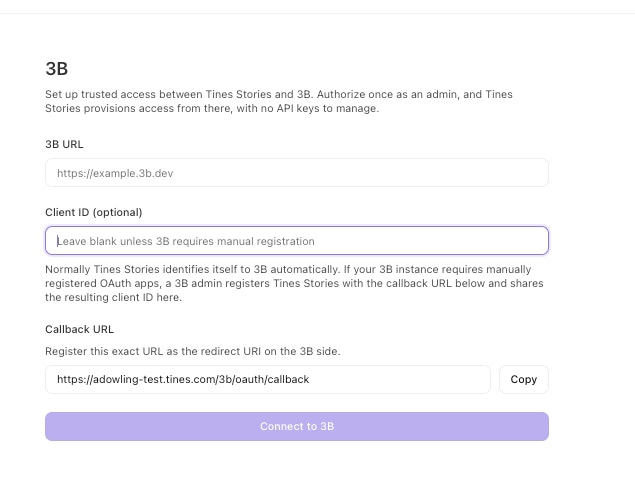
Go to Admin settings → 3B connection.
Enter your 3B instance URL (and a client ID if your 3B instance needs one).
Select Connect and authorize in 3B.
Approving provisions a service account, OIDC provider, and federation in 3B, and records the connection in Tines.
You return to Tines and the page shows Connected.
Connection status
The page shows:
Status:
ConnectedorReconnect required.3B URL: the connected instance.
Service account: the 3B account Tines authenticates as.
Connected on: the date it was established.
How ongoing authentication works
Tines acts as the OIDC issuer for the connection: it publishes public signing keys, mints a short-lived signed token per call, and 3B verifies it against those keys. No shared secret is stored on either side.
Reconnecting
If the page shows Reconnect required, open the 3B connection page and select Reconnect, then authorize again. This re-establishes trust and clears the warning.
Creating 3B service accounts for teams in Tines
Go to Admin settings → 3B connection.
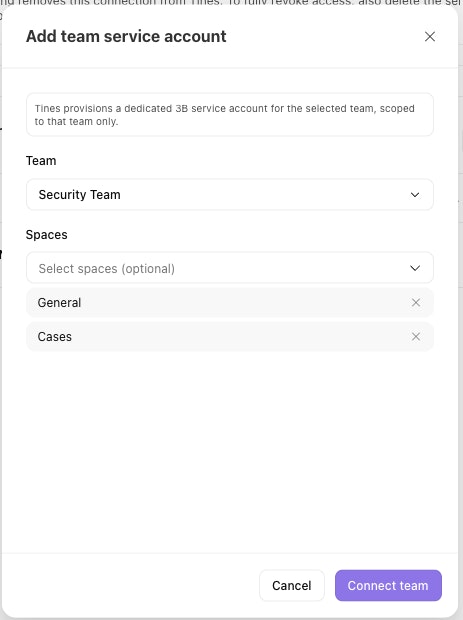
Select Add Team service account.
Select a Tines Team for the service account.
Select the 3B spaces that the service account should have access to.
Select Connect team.
Connecting creates a service account in 3B that acts on behalf of the Tines team.